User Guide
TutorTrack is a desktop application designed for Singaporean freelance tutors to efficiently manage their students, lessons, and assignments. It combines the speed of a Command Line Interface (CLI) with the convenience of a Graphical User Interface (GUI), making it ideal for tutors who prefer typing over mouse interactions. If you can type fast, TutorTrack will help you manage your tutoring tasks faster than traditional GUI apps.
TutorTrack uses a dual-list system to manage students and lessons. Users can easily modify the student list and lesson list, allowing for quick access to student information and lesson schedules with their unique indexes. The application also supports assignment management, enabling tutors to keep track of their students’ assignments and their completion status uniquely identified by the name of the assignment. Users can easily toggle between the lists with simple CLI-based commands.
- Target Users
- Assumptions about Users
- Quick start
- Features
- FAQ
- Known issues
- Command summary
Target Users
Singaporean freelance tutors who:
- Juggle multiple students/lessons and need centralized tracking
- Prefer keyboard-driven efficiency over mouse navigation
- Want lightweight but capable task management
Assumptions about Users
- Users are familiar with basic CLI commands.
- Users have a basic understanding of file management (e.g., creating folders, moving files).
- Users are comfortable with Java-based applications.
Quick start
-
Ensure Java 17 or above is installed on your computer.
Mac users: Follow the installation guide here. -
Download the latest
.jarfile from the releases page. -
Copy the
.jarfile to the folder you want to use as the home folder for your TutorTrack. - Open a command terminal, navigate to the folder containing the
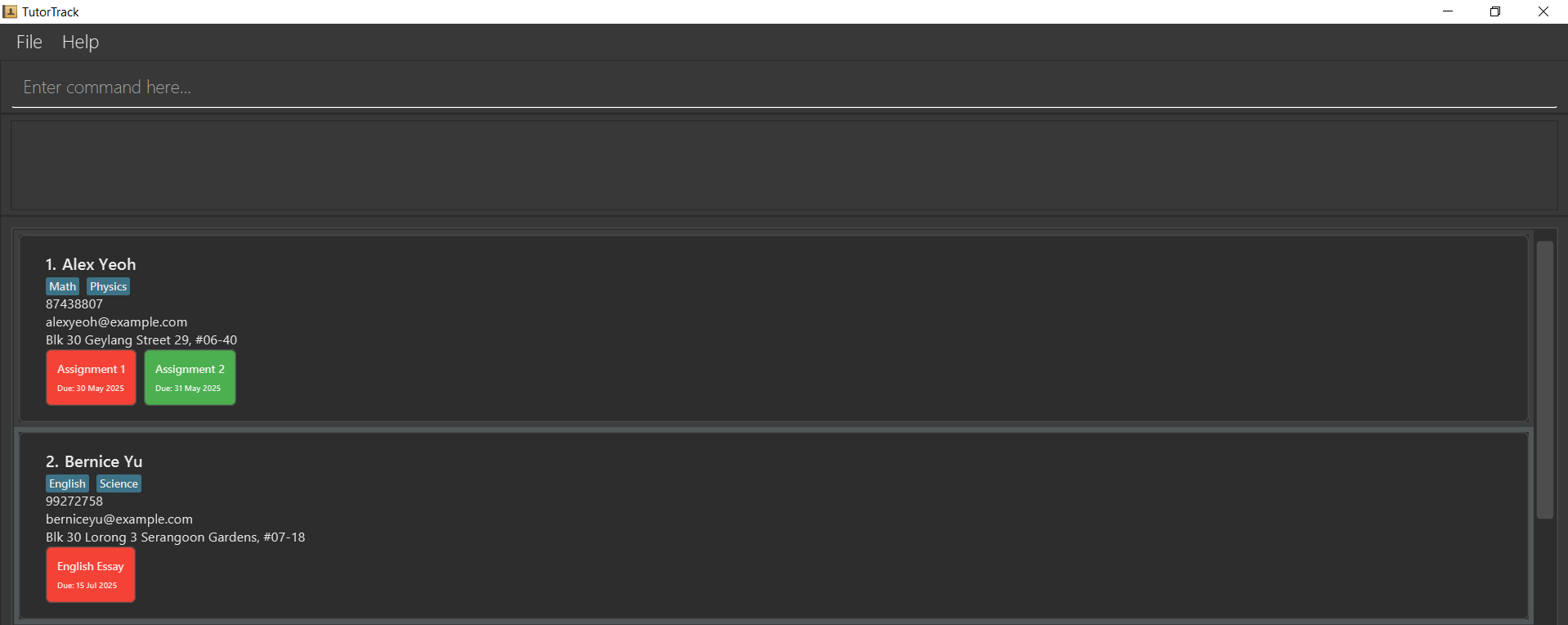
.jarfile using thecdcommand, and run the application with:java -jar tutortrack.jarA GUI similar to the below should appear in a few seconds, preloaded with sample data.
- Type commands in the command box and press
Enterto execute it. e.g. typinghelpand pressing Enter will open the help window.
-
help: Opens the help window. -
list_students: Lists all students. -
list_lessons n/Jackie: Lists all lessons under a student or all lessons in the data -
clear: Deletes all students. -
find_student Bernice: Finds student containing Bernice. -
exit: Exits the app. More commands listed below.
-
- Refer to the Features section below for detailed instructions on each command.
Features
 Notes about the command format:
-
Parameters in
UPPER_CASEare to be supplied by the user. Example: Inadd_student n/STUDENT_NAME,STUDENT_NAMEcan be replaced withJohn Doe. -
Optional fields are enclosed in square brackets
[]. Example:add_student n/NAME p/PHONE e/EMAIL a/ADDRESS [s/SUBJECT]can be used asadd_student n/John Doe p/91234567 e/ johndoe@gmail.com a/ 311, Clementi Ave 2, #02-25 s/Mathoradd_student n/John Doe p/91234567 e/ johndoe@gmail.com a/ 311, Clementi Ave 2, #02-25. -
Multiple uses of a field are indicated by
….Example:
[s/SUBJECT]…can be used ass/Math,s/Math s/Science, or omitted entirely. -
Parameters can be in any order.
Example:
n/STUDENT_NAME p/PHONE_NUMBERis equivalent top/PHONE_NUMBER n/STUDENT_NAME. -
Extraneous parameters for commands like
help,list_students,exit, andclearwill be ignored.Example:
help 123is interpreted ashelp. -
Use of indexes: To facilitate ease of typing, lessons and students are referred as indexes in the current view.
For example, if you are viewing the student list and you want to delete the 2nd student, you can type
delete_student 2to delete the 2nd student in the list. The same applies for lessons.-
Depends on the filtered view of each list, each student/lesson may have different index.
-
Avoid accessing lessons through index while viewing the student list and vice versa. It is recommended to use the
list_studentsorlist_lessonscommand to view the respective lists before using the index.
-
-
If you are using a PDF version of this document, be careful when copying and pasting commands that span multiple lines as space characters surrounding line-breaks may be omitted when copied over to the application.
General features
Viewing help : help
Shows a message explaining how to access the help page.
Format:
help

Clearing all entries : clear
Clears all entries from both the student list and the lesson list.
 Caution:
There is no confirmation for this command and the data will be cleared immediately after execution. Use at your own risk.
Caution:
There is no confirmation for this command and the data will be cleared immediately after execution. Use at your own risk.
Format:
clear
Exiting the program : exit
Exits the program.
Format:
exit
Saving the data
TutorTrack data is saved in the hard disk automatically after any command that changes the data. There is no need to save manually.
Editing the data file
TutorTrack data is saved automatically as a JSON file [JAR file location]/data/TutorTrack.json. Advanced users are welcome to update data directly by editing that data file.
Caution:
If your changes to the data file makes its format invalid, TutorTrack will discard all data and start with an empty data file at the next run. Hence, it is recommended to take a backup of the file before editing it.Furthermore, certain edits can cause the TutorTrack to behave in unexpected ways (e.g., if a value entered is outside of the acceptable range). Therefore, edit the data file only if you are confident that you can update it correctly.
Managing students
TutorTrack allows for easy management of students, including adding, editing, deleting, and finding students. You can also view all students in the list.
The student list is displayed on default when the application is opened. The student list shows the name, phone number, email, address, subjects and assignments of each student.
Adding a student: add_student
Adds a student to the student list, with their name, phone number, address, email and subjects.
You can add multiple subjects by using the subject prefix s/ for each subject.
Format:
add_student n/STUDENT_NAME p/PHONE_NUMBER a/ADDRESS e/EMAIL [s/SUBJECTS]…
-
STUDENT_NAMEis the student’s name displayed on the student list.- Alphanumerical characters and spaces (e.g.,
Alex Yeoh,John Doe 2) - Auto-converted to Title Case (e.g.,
alex yeoh→Alex Yeoh) - Special constructs (
d/o,s/o) and Symbols/hyphens (-,') or numerals (0-9) not allowed
- Alphanumerical characters and spaces (e.g.,
-
PHONE_NUMBERis the student’s contact number- Has to be 8 digits
-
ADDRESSis the student’s postal address -
EMAILis the student’s email- Must be a valid email address (details in the app)
-
SUBJECTis the subject the student is being taught- Can have any number of subjects
- Alphanumeric characters allowed, case-insensitive and automatically converts to Title Case
Examples:
add_student n/John Doe p/98765432 e/johndoe@email.com a/311, Clementi Ave 2, #02-25 s/Mathadd_student n/Mary Jane p/12345678 e/maryjane@email.com a/Blk 47 Tampines Street 20, #17-35 s/Math s/Science
Editing a student : edit_student
Edits an existing student in the student list.
Format:
edit_student STUDENT_INDEX [n/STUDENT_NAME] [p/PHONE] [e/EMAIL] [a/ADDRESS]
-
STUDENT_NAMEis the student’s name displayed on the student list.- Alphabetic characters and spaces (e.g.,
Alex Yeoh) - Auto-converted to Title Case (e.g.,
alex yeoh→Alex Yeoh) - Special constructs (
d/o,s/o) and Symbols/hyphens (-,') or numerals (0-9) not allowed
- Alphabetic characters and spaces (e.g.,
-
PHONE_NUMBERis the student’s contact number- Has to be 8 digits
-
ADDRESSis the student’s postal address -
EMAILis the student’s email- Must be a valid email address (details in the app)
- Subjects cannot be edited at this stage.
- To edit the subjects, you can delete the student and add a new one with the updated subjects.
Examples:
-
edit_student 1 p/91234567 e/johndoe@example.com
Edits the phone number and email address of the 1st student to be91234567andjohndoe@example.comrespectively.
Deleting a student : delete_student
Deletes the specified student from the student list.
 Note This command can only be executed when viewing the student list (e.g.
 list_students) Format:
delete_student STUDENT_INDEX
-
STUDENT_INDEXcorresponds to the index of the student as displayed in the student list- Has to be a positive integer
Example:
-
list_studentsfollowed bydelete_student 2deletes the 2nd student in the student list.
Listing all students : list_students
Switch to a view that shows all students in the student list.
Format:
list_students
Locating students by name: find_student
Finds students whose names contain any of the given keywords.
Note: Partial-word matching (e.g., searching for “Sre” to match “Sree Haridos”) is currently not supported but may be added in a future update. Format:
find_student KEYWORD [MORE_KEYWORDS...]
-
STUDENT_NAMEis the name of the student.- It must be a valid name of a student in the student list.
- Search is case-insensitive. e.g
hanswill matchHans - Only matches complete words in the name (e.g.,
AlexmatchesAlex Yeohbut notAlexander). - The order of the keywords does not matter. e.g.
Hans Bowill matchBo Hans - Only the name is searched.
- Students matching at least one keyword will be returned.
e.g.
Hans Bowill returnHans Gruber,Bo Yang
Examples:
-
find_student JohnreturnsjohnandJohn Doe -
find_student alex davidreturnsAlex Yeoh,David Li
Managing lessons
TutorTrack allows for easy management of lessons, including adding, editing, deleting, and listing lessons. You can also view all lessons in the list.
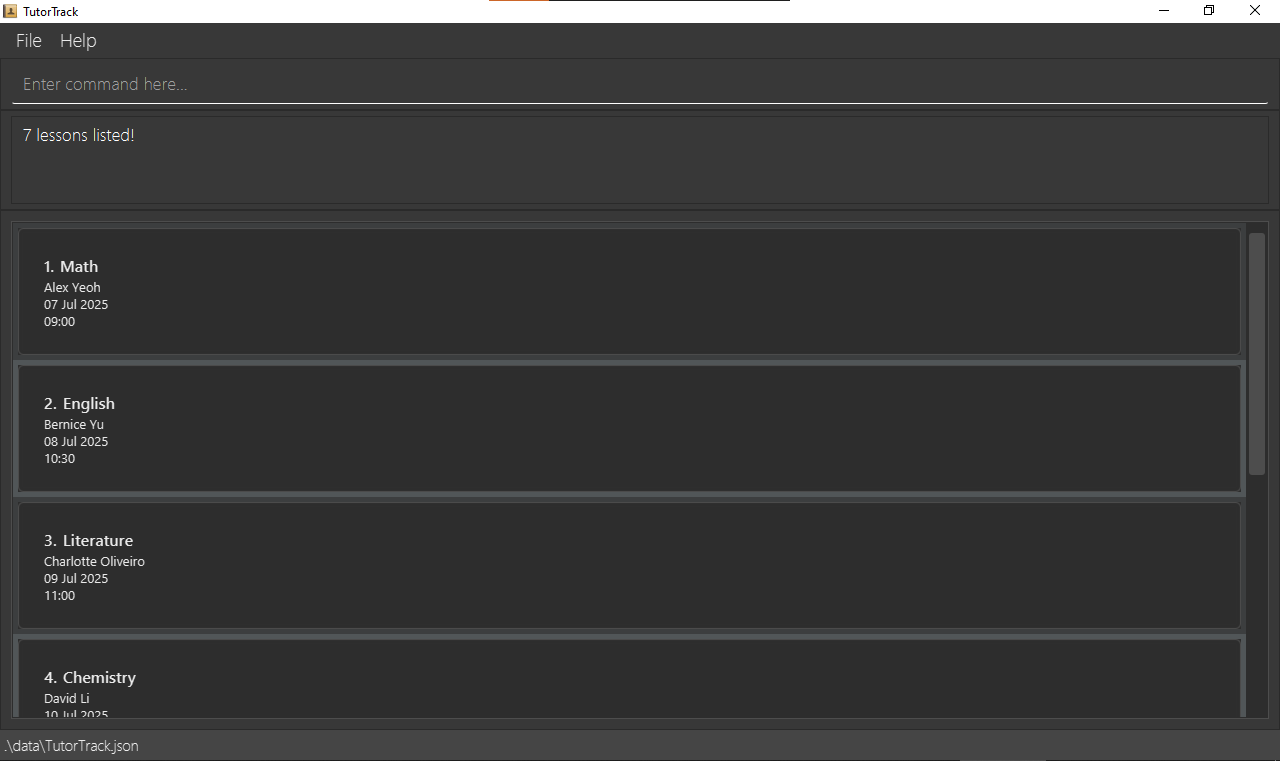
The lesson list is displayed when you type list_lessons in the command box. The lesson list shows the name of the student, date, time and subject of each lesson.
Adding a lesson: add_lesson
Adds a lesson to the lesson list.
Group Lessons Note: Currently, TutorTrack doesn’t support group lessons where multiple students share the same time slot. Each lesson time must be unique to the tutor’s schedule. We’re considering adding group lesson support in a future update. Format:
add_lesson n/STUDENT_NAME s/SUBJECT d/DATE t/TIME
Note: Student names will be automatically matched in a case-insensitive manner and stored in Title Case. -
STUDENT_NAMEis the name of the student.- It must be a valid name of a student in the student list.
- Names are case-insensitive
-
alice chanmatchesAlice Chan
-
-
SUBJECTis the subject of the lesson.- It must be a valid subject of the student in the student list.
-
DATEis the date of the lesson.- It must be in the format
d-M-yyyyand must be in the future.
- It must be in the format
-
TIMEis the time of the lesson.- It must be in the format
HH:mm. - Two lessons cannot be scheduled at the same time (e.g. 15:00 and 15:01 are considered different)
- It must be in the format
Example:
add_lesson n/Alice Chan d/17-09-2025 t/15:00 s/Math-
add_lesson n/Bob Lee d/17-09-2025 t/16:00 s/Math(different time slot)
Editing a lesson: edit_lesson
Edits the details of an existing lesson
- Edit individual details or edit multiple together.
- Student names in lessons will be automatically converted to Title Case when edited
Format:
edit_lesson LESSON_INDEX [n/STUDENT_NAME] [d/DATE] [t/TIME] [s/SUBJECT]
-
LESSON_INDEXcorresponds to the index of the lesson on the displayed lesson list- Has to be a positive integer
-
STUDENT_NAMEis the name of the student.- It must be a valid name of a student in the student list.
- Names are case-insensitive
-
alice chanmatchesAlice Chan
-
-
SUBJECTis the subject of the lesson.- It must be a valid subject of the student in the student list.
-
DATEis the date of the lesson.- It must be in the format
d-M-yyyyand must be in the future.
- It must be in the format
-
TIMEis the time of the lesson.- It must be in the format
HH:mm. - Two lessons cannot be scheduled at the same time (e.g. 15:00 and 15:01 are considered different)
- It must be in the format
Examples:
edit_lesson 1 d/16-02-2026edit_lesson 2 n/Jone King t/16:00 d/18-9-2025 s/Math
Deleting a lesson: delete_lesson
Deletes the specified lesson from the lesson list.
Format:
delete_lesson LESSON_INDEX
-
LESSON_INDEXcorresponds to the index of the lesson on the displayed lesson list.- Has to be a positive integer.
Examples:
-
list_lessonsfollowed bydelete_lesson 2deletes the 2nd lesson in the lesson list. -
list_lessons n/John Leefollowed bydelete_lesson 1deletes the 1st lesson in the lesson list.
Listing lessons : list_lessons
Shows a list of all lessons under a student in the lesson list.
If no student is specified, shows all lessons in the list.
Format:
list_lessons [n/STUDENT_NAME]
-
STUDENT_NAMEis as displayed on the student list (case-insensitive)
Example:
list_lessons n/John Leelist_lessons
Managing assignments
TutorTrack allows for easy management of assignments, including adding, deleting, marking and unmarking assignments. You can also view all assignments in the student list under each student entry.
Adding an assignment: add_assignment
Adds an assignment to a student in the student list
Format:
add_assignment STUDENT_INDEX as/ASSIGNMENT_NAME d/DATE
-
STUDENT_INDEXcorresponds to the student to which the assignment belongs in the displayed list.- Has to be a positive integer
-
ASSIGNMENT_NAMEis the name of the assignment to add.- The name of the assignment must be unique within the student.
- Alphanumeric characters allowed (e.g.,
Math Exercise 1) - Automatically converted to Title Case (e.g.,
math exercise→Math Exercise)
-
DATEis the due date of the assignment.- The date must be in the format
d-M-yyyy(e.g.,27-09-2026or1-1-2026). - The date must be in the future (i.e., not in the past).
- The date must be in the format
Example:
add_assignment 2 as/Science 101 d/27-09-2026
Deleting an assignment: delete_assignment
Deletes the assignment identified by the index number of the student and the assignment name.
The assignment will be removed from the student’s list of assignments.
Format:
delete_assignment STUDENT_INDEX as/ASSIGNMENT_NAME
-
INDEXcorresponds to the student to which the assignment belongs in the displayed list.- Has to be a positive integer
-
ASSIGNMENT_NAMEis the name of the assignment to add.- The name of the assignment must be unique within the student.
- Alphanumeric characters allowed (e.g.,
Math Exercise 1) - Automatically converted to Title Case (e.g.,
math exercise→Math Exercise)
Example:
-
delete_assignment 1 as/Assignment 1deletes the assignment namedAssignment 1for the first student in the list.
Editing an assignment: edit_assignment
Edits an assignment for a student in the student list
Format:
edit assignment STUDENT_INDEX as/ASSIGNMENT_NAME [nas/NEW_ASSIGNMENT_NAME] [d/DATE]
-
STUDENT_INDEXcorresponds to the student to which the assignment belongs in the displayed list.- Has to be a positive integer
-
ASSIGNMENT_NAMEis the name of the assignment to add.- The name of the assignment must be unique within the student.
- Alphanumeric characters allowed (e.g.,
Math Exercise 1) - Automatically converted to Title Case (e.g.,
math exercise→Math Exercise)
-
NEW_ASSIGNMENT_NAMEis the new name of the assignment to be changed to.- Follows as above
-
DATEis the due date of the assignment.- The date must be in the format
d-M-yyyy(e.g.,27-09-2026or1-1-2026). - The date must be in the future (i.e., not in the past).
- The date must be in the format
Example:
-
edit_assignment 1 as/Science nas/Mathchanges the name of the assignment of the first student in the display student list fromSciencetoMath. -
edit_assignment 1 as/Science d/12-12-2025changes the date of the assignment named “Science” of the first student in the display student list. -
edit_assignment 1 as/Science nas/Math d/12-12-2025combination of the two example above.
Marking an assignment: mark_assignment
Marks an assignment of a student as complete.
Complete assignments are denoted by a green colour.
Format:
mark_assignment STUDENT_INDEX as/ASSIGNMENT_NAME
-
STUDENT_INDEXcorresponds to the student to which the assignment belongs in the displayed list.- Has to be a positive integer
-
ASSIGNMENT_NAMEis the name of the assignment to add.- The name of the assignment must be unique within the student.
- Alphanumeric characters allowed (e.g.,
Math Exercise 1) - Automatically converted to Title Case (e.g.,
math exercise→Math Exercise)
Example:
-
mark_assignment 1 as/Assignment 1marks the assignment named “Assignment 1” of the first student in the list as completed.
Unmarking an Assignment: unmark_assignment
Marks an assignment of a student as incomplete.
Incomplete assignments are denoted by a red colour.
Format:
unmark_assignment STUDENT_INDEX as/ASSIGNMENT_NAME
-
STUDENT_INDEXcorresponds to the student to which the assignment belongs in the displayed list.- Has to be a positive integer
-
ASSIGNMENT_NAMEis the name of the assignment to add.- The name of the assignment must be unique within the student.
- Alphanumeric characters allowed (e.g.,
Math Exercise 1) - Automatically converted to Title Case (e.g.,
math exercise→Math Exercise)
Example:
-
unmark_assignment 1 as/Assignment 1unmarks the first assignment in the list, setting it to incomplete.
FAQ
Q: How do I transfer my data to another computer?
A: Install the app on the new computer and replace the empty data file with the one from your previous TutorTrack folder.
Q: Why can’t I add students with identical names?
A: TutorTrack prevents students with identical names to:
-
Prevent Confusion
- Ensures each student has a unique identity in your records
- Eliminates ambiguity when scheduling lessons or assignments
-
Maintain Data Accuracy
- Guarantees commands like
delete_studentoredit_studentaffect the correct individual - Prevents accidental merging of different students’ records
- Guarantees commands like
-
Optimize Workflow
- Makes student selection faster when managing lessons/assignments
- Reduces cognitive load when scanning your student list
Q: What if I need to add students with similar names?
A: The system will accept names that: Differ by at least one character (e.g., “John Doe” vs “Jon Doe”)
Tip: For students who share names naturally, consider adding identifiers: middle initials (e.g., “John A Doe” vs “John B Doe”), numerals (e.g., “John Doe 1” vs “John Doe 2”)Known issues
-
Multiple Screens Issue: If you move the app to a secondary screen and later switch to a single screen, the GUI may open off-screen. To fix, delete the
preferences.jsonfile before running the app again. -
Help Window Issue: Minimizing the Help Window and running
helpagain may not open a new window. Restore the minimized window manually.
Command summary
👤 Student Management
| Action | Format, Examples |
|---|---|
| Add Student |
add_student n/NAME p/PHONE e/EMAIL a/ADDRESS s/SUBJECTe.g., add_student n/John Doe p/91234567 e/john@example.com a/123 Street s/Math
|
| Edit Student |
edit_student INDEX [n/NAME] [p/PHONE] [e/EMAIL] [a/ADDRESS]e.g., edit_student 1 p/98765432
|
| Delete Student |
delete_student INDEXe.g., delete_student 3
|
| Find Student |
find_student KEYWORD [MORE_KEYWORDS] e.g., find_student James Jake |
| List Students | list_students |
📚 Lesson Management
| Action | Format, Examples |
|---|---|
| Add Lesson |
add_lesson n/STUDENT_NAME d/DATE t/TIME s/SUBJECTe.g., add_lesson n/Jack d/16-10-2025 t/15:00 s/CS2103T
|
| Edit Lesson |
edit_lesson INDEX [n/STUDENT_NAME] [d/DATE] [t/TIME] [s/SUBJECT]e.g., edit_lesson 1 d/20-10-2025 t/14:00
|
| Delete Lesson |
delete_lesson INDEXe.g., delete_lesson 1
|
| List Lessons |
list_lessons [n/STUDENT_NAME]e.g., list_lessons, list_lessons n/Sally Mood
|
📝 Assignment Management
| Action | Format, Examples |
|---|---|
| Add Assignment |
add_assignment STUDENT_INDEX as/ASSIGNMENT d/DATEe.g., add_assignment 1 as/Math Homework d/23-07-2025
|
| Edit Assignment |
edit_assignment STUDENT_INDEX as/ASSIGNMENT_NAME [nas/NEW_NAME] [d/NEW_DATE]e.g., edit_assignment 1 as/Assignment1 nas/UpdatedAssignment d/25-12-2025
|
| Delete Assignment |
delete_assignment STUDENT_INDEX as/ASSIGNMENT_NAMEe.g., delete_assignment 1 as/Assignment 1
|
| Mark Assignment |
mark_assignment STUDENT_INDEX as/ASSIGNMENT_NAMEe.g., mark_assignment 1 as/Assignment 1
|
| Unmark Assignment |
unmark_assignment STUDENT_INDEX as/ASSIGNMENT_NAMEe.g., unmark_assignment 1 as/Assignment 1
|
🧹 General Utility
| Action | Format, Examples | |
|---|---|---|
| Clear | clear |
|
| Help | help |
|
| Exit | exit |